
NoveList Tutorial

NoveList is a database designed to help readers find and keep track of books they are interested in. The database helps identify elements you enjoy and provides lists of books you may also enjoy based on those elements. It also has curated lists based on a variety of themes. In addition to the lists it provides for readers, it can be used to create and keep track of books that you would like to read later.
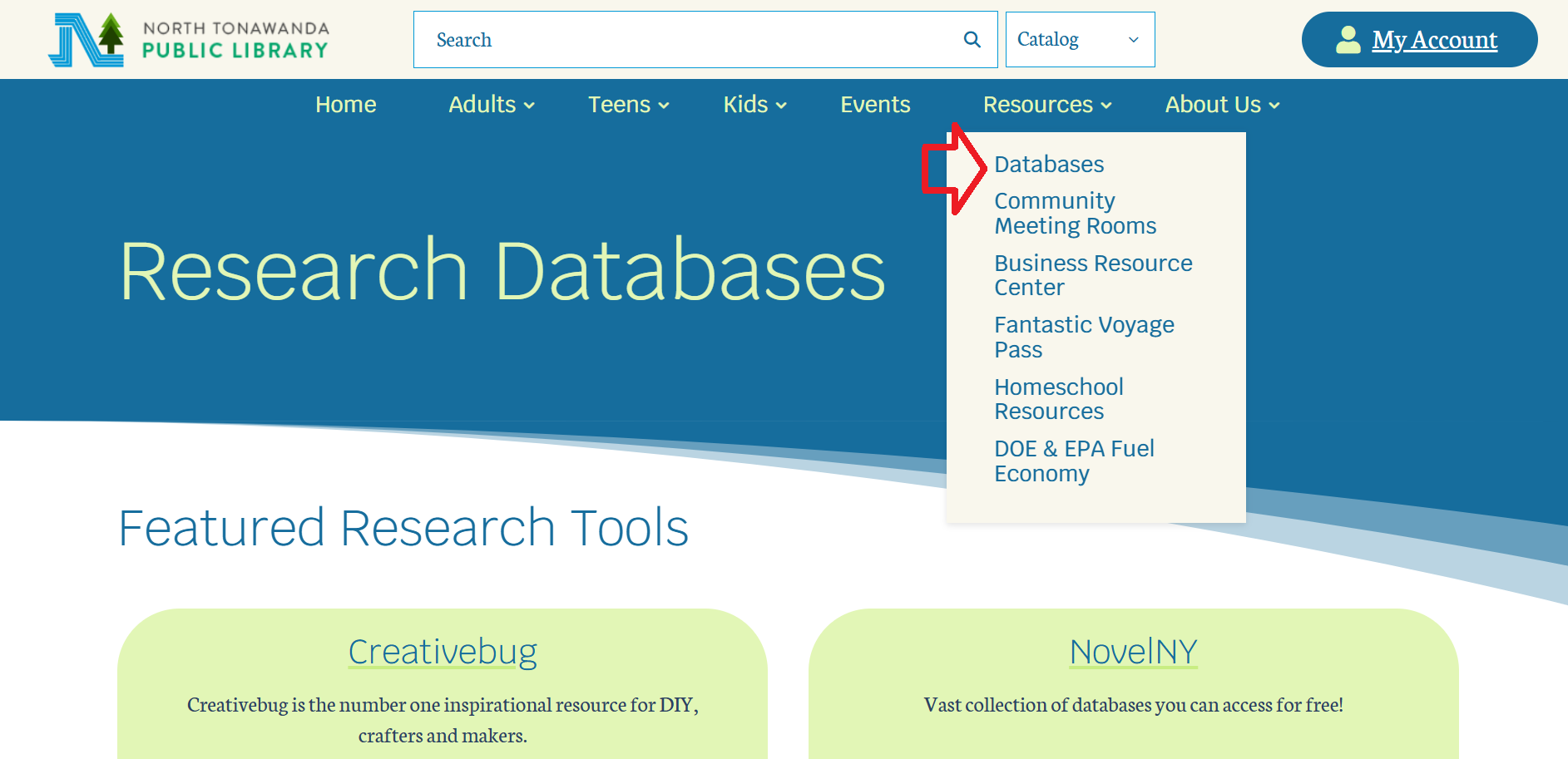
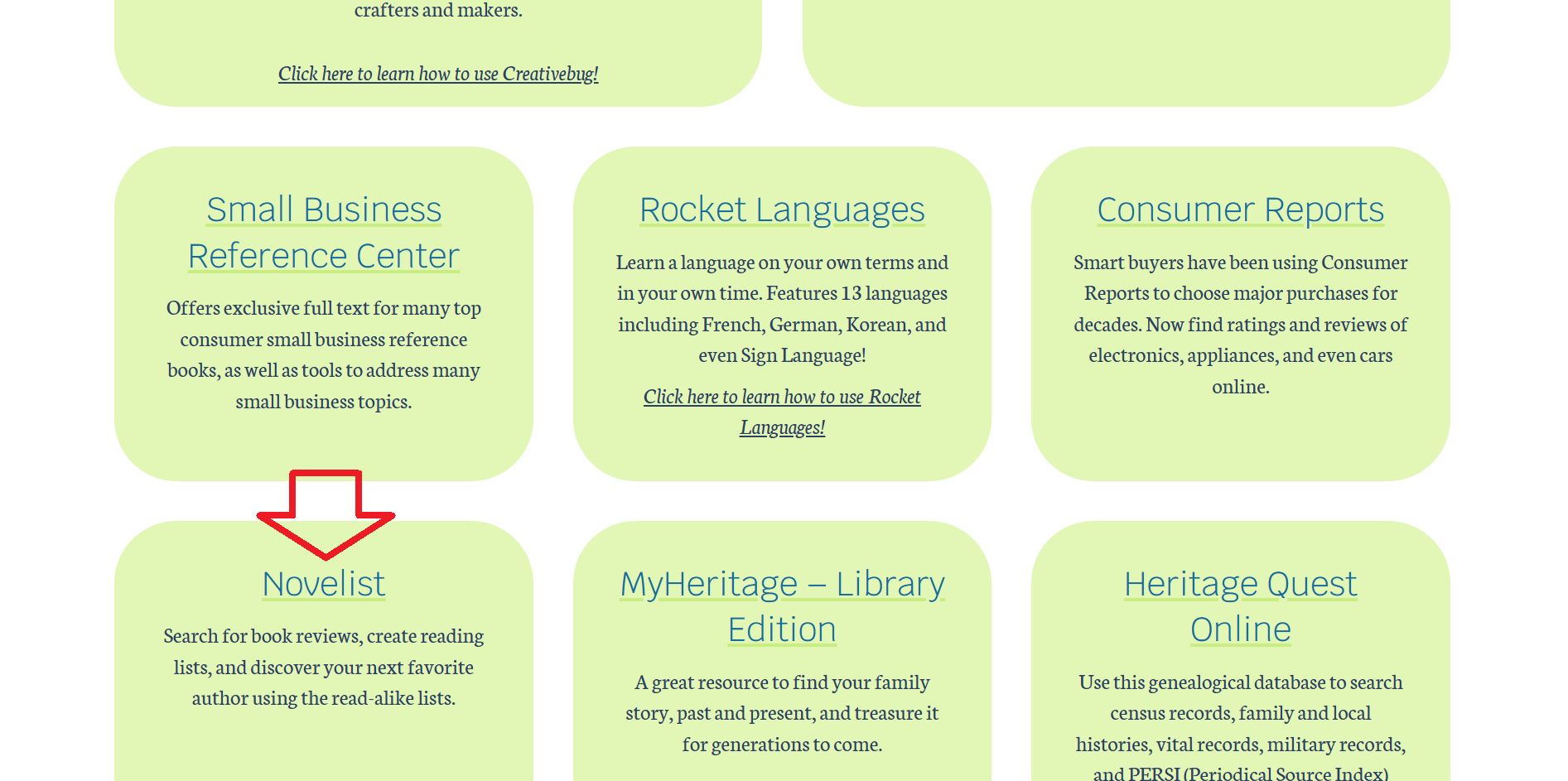
To use NoveList, navigate to the website through our Database page under the resources tab, scrolling down to the NoveList box on the left, or click the NoveList logo at the top of this page.
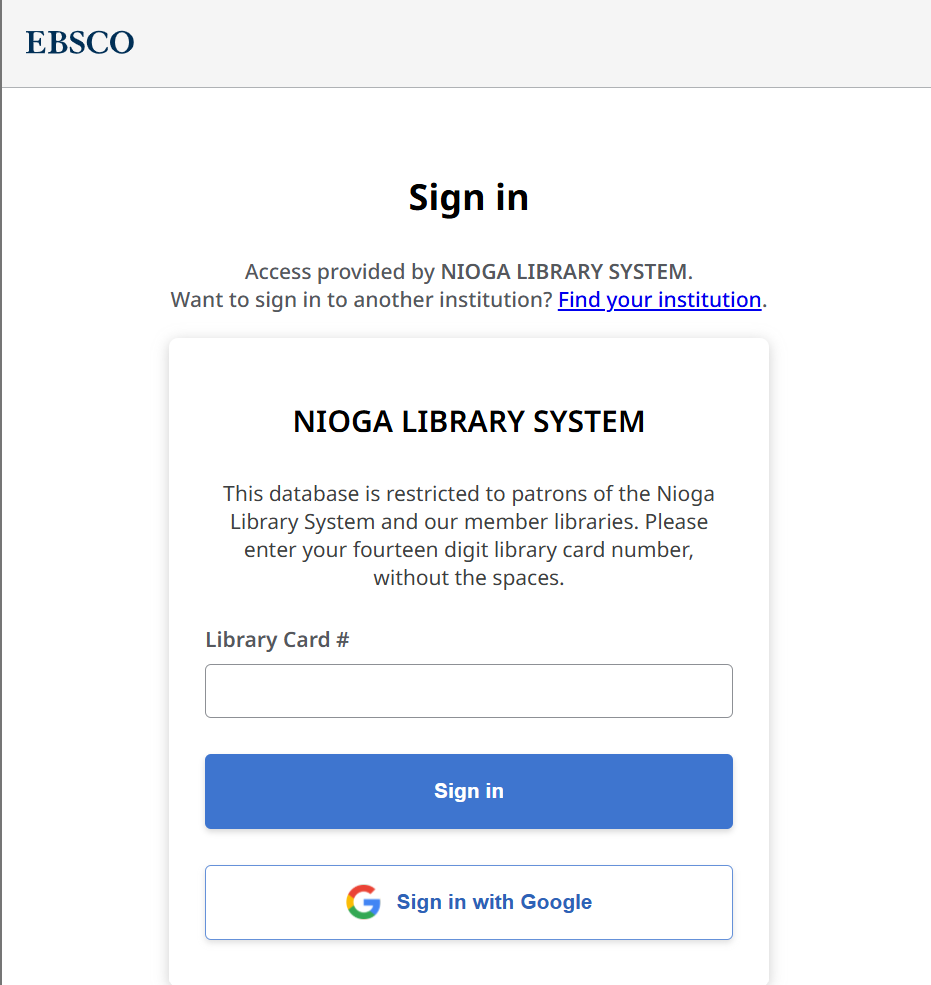
This takes you to the log in page. Enter your library card number and select sign in.
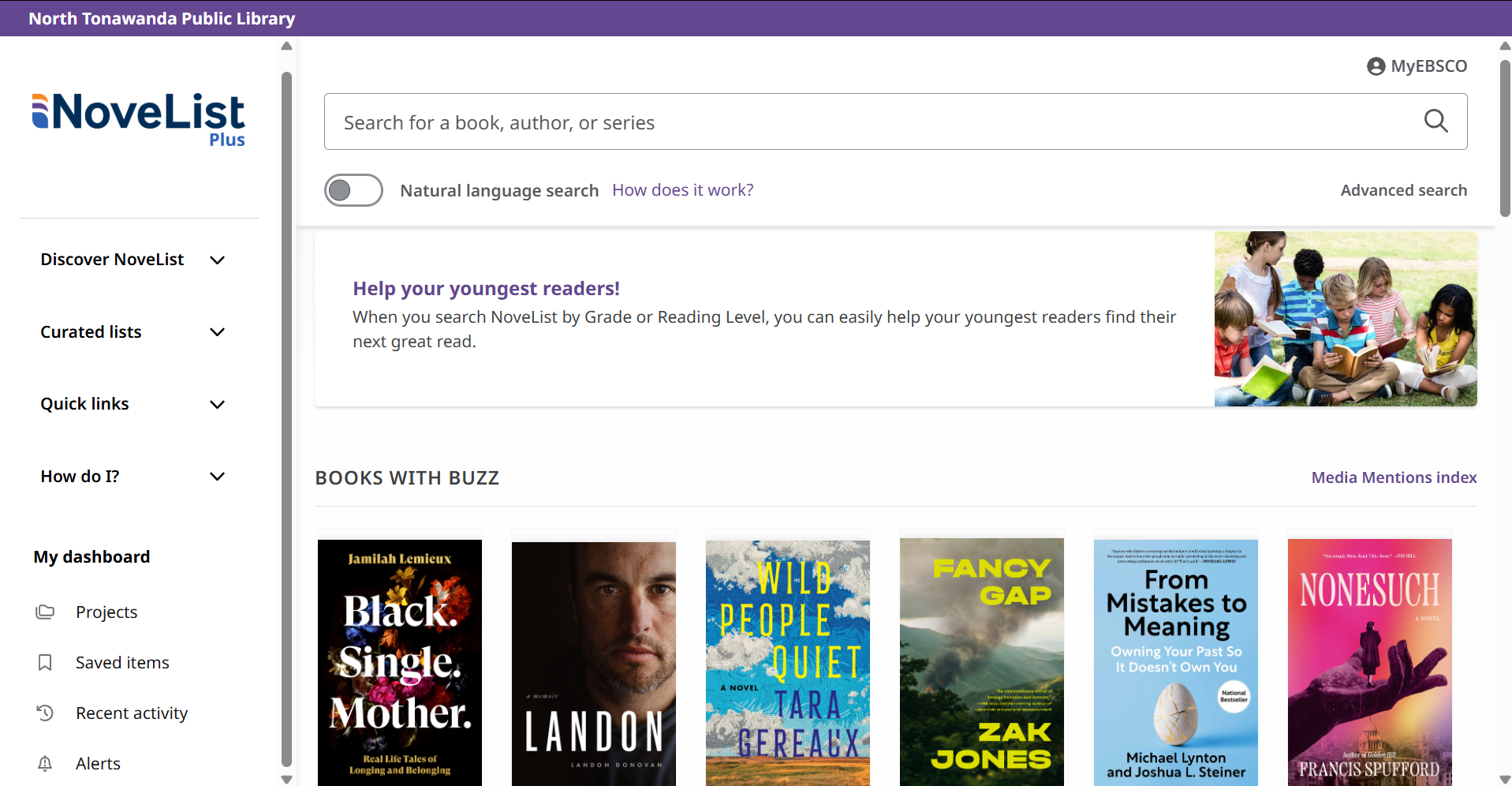
The home page of NoveList has a lot to take in so we’ll do our best to break it down. The left of the screen should have a navigation bar to help you get around, but we’ll get back to that. For now, let’s focus on what you can find on the home page itself.
Near the top of this screen you will find a search bar. You can use this to search for a specific book, a series, or even all of the books from an author. This isn’t much different than using the library catalog, but NoveList has a lot more to offer besides a searchable catalog.
On the left below the search bar, there is a toggle to turn on “natural language search”. Natural language search uses algorithms so you can type in the search box as if you’re asking a question to a person and it will do its best to understand your question and give you results based on that. If you use Google a lot, you may have been using natural language search without even realizing. I personally would recommend leaving the toggle off since you will get better results by just entering titles, series, and authors.
On the right below the search bar, there’s a link that says “Advanced search”. Clicking that takes you to the advanced search page. An advanced search lets you use multiple criteria. For example, maybe you are looking for a certain book with a title that’s just one word and trying to search with just that title gives you way too many results. If you know the author, the advanced search could help! Just enter the title into the first text box, use the dropdown box next to that to select “Title”, then enter the author’s name into the second text box and use the dropdown menu next to that to select “Author”. Make sure the dropdown box tween them says “AND”, then click the “Search” button. The advanced search also lets you search for one criteria OR another criteria, and, scrolling down, you can narrow your results with a bunch of options including award winning books, date of publication, age demographic, and more. Going through all these options could be a tutorial entirely on its own so feel free to experiment with the Advanced search if you are looking for a specific book that’s hard to search for normally or if you have a vague idea of what you want to read but don’t know exactly which book you’re looking for.
Going back to the main page of NoveList, below the search box you may find a link about helping younger readers. Clicking this will take you to a page full of tips on how to find books for children based on their grade or suggested reading level. If you are a parent, teacher, or in some other position where you are helping children learn to read, this page is a valuable resource.
Scrolling further down the main page, you’ll find “BOOKS WITH BUZZ”, which had a selection of books that have gotten a lot of media attention recently. Next are “CURATED LISTS”, which are collections of books following a theme, subject matter, or other unifying element. Curated lists are all put together by actual librarians and literature specialists, not an algorithm, ensuring they actually follow the themes that they say they do. Following that are “NEW SERIES TITLES”, which are new books that are part of a series. This includes books that are the beginning of a new series as well as books that are continuing established series.
Finally, below all of that, are some categories to browse. They’re all pretty self-explanatory, so if any of those are of interest to you, check them out.
Now we’ll go over the sidebar.
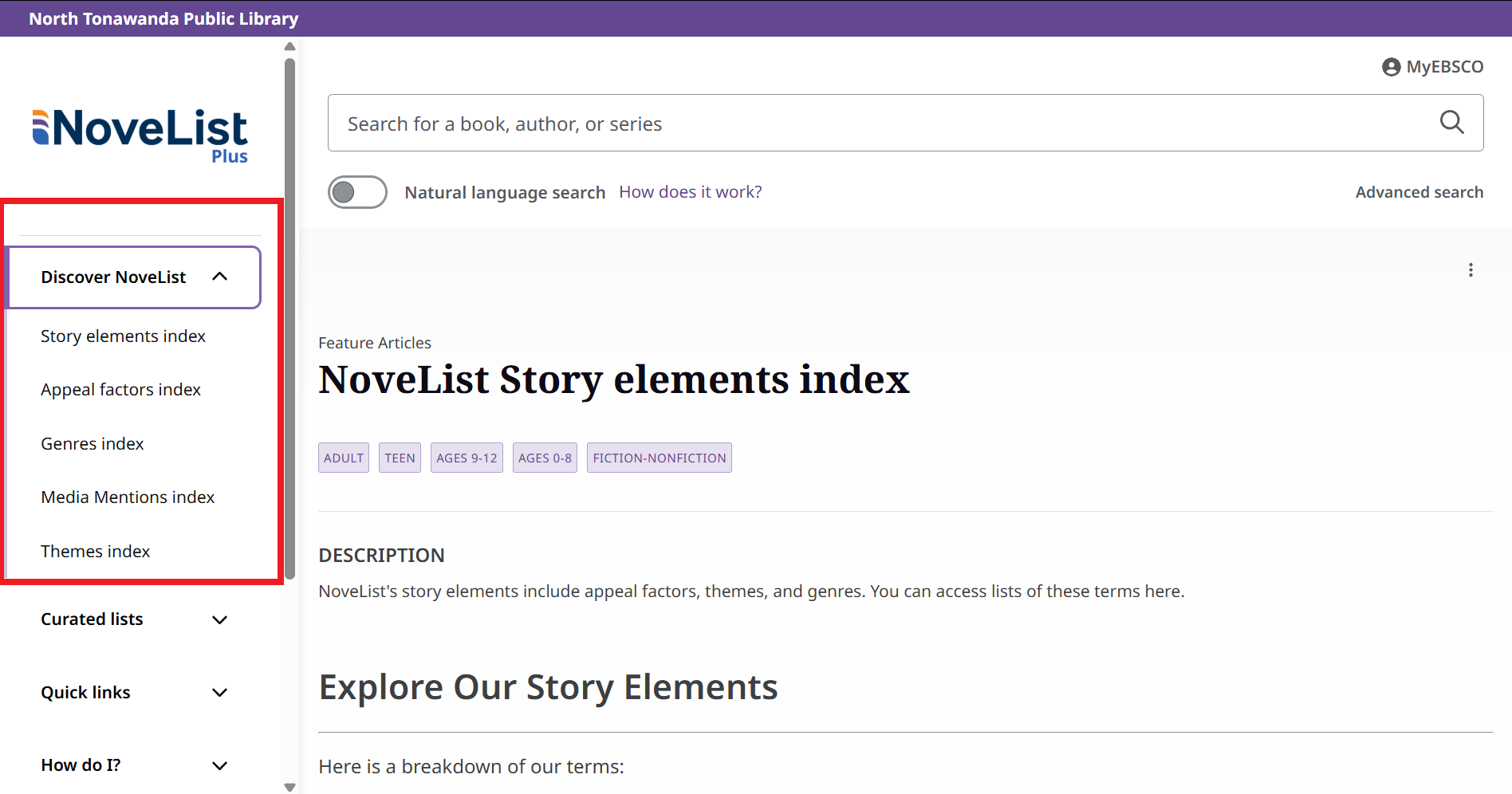
“”Selecting “Discover NoveList” gives you options of various indexes. Think of these indexes as lists of books that share some sort of element. These indexes can help you find books based on your preferences. “Story elements index” takes you to a general page that explains the other indexes, which fall into three categories, all of which can be found in the sidebar below “story elements index”.
The first, “appeal factors index”, focuses on traits of a story that can be appealing to readers. These can be broken into many smaller categories, all of which are described on that page. Examples of a few appeal factors are “first person narratives”, “sympathetic characters”, and “emotionally intense moods”.
The second category, “genres index”, compiles stories by genre. These too can be broken into general genres and then into more specific. Examples of these genres can be “historical romances”, “cozy mysteries, and “Scandinavian crime fiction”.
The third category is “themes index”, focuses more on what stories are about than the genre. Themes can be familiar story setups or tropes, like “unlikely friendships”, “locked room crimes”, and “fake relationship”.
Finally, excluded from the three “story elements indexes” is the “media mentions index”. This lists books mentioned in media, allowing you to specify which media it came from. These fall into three categories: News and talk shows such as Good Morning America; celebrity and media book clup picks such as Oprah’s book club; and screen adaptations such as Netflix films.
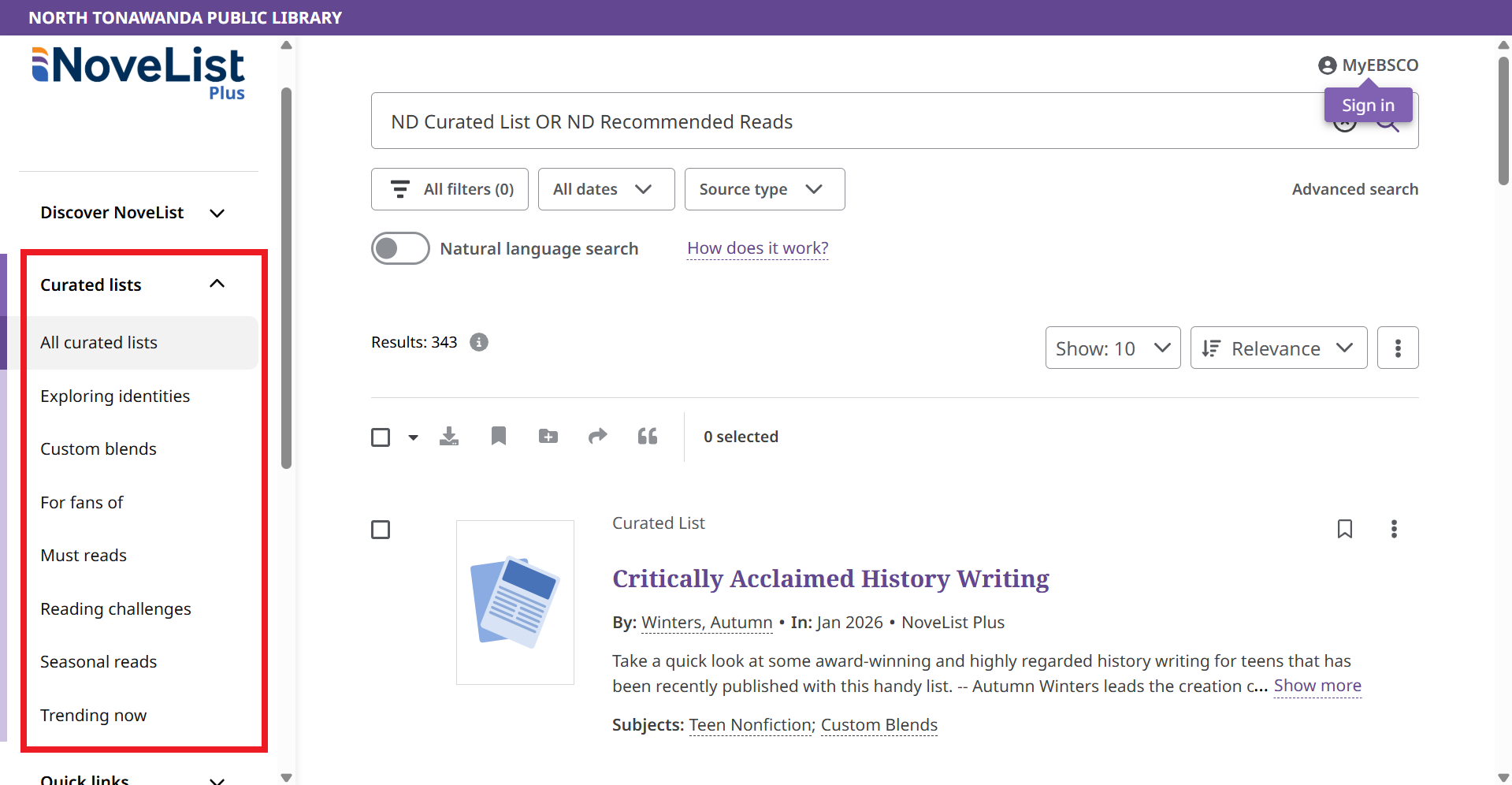
Curated lists were mentioned earlier in this tutorial but they are lists of books chosen by actual librarians and literature specialists fitting different themes, subjects, etc.
“All curated lists” allows you to search all of the curated lists, which is hundreds. This can be a lot of information to parse so in most cases you should avoid this option.
“Exploring identities” will give you lists focused on various parts of one’s culture or identity. This ranges from Asian American and Pacific Islander Heritage Month to Neurodivergent Lives. These lists are great if you want to read books that resonate with your background or if you want to learn more about others.
“Custom blends” includes lists cross the lines between two different subjects, genres, or appeal terms. Examples of this include “atmospheric & creepy”, “hopeful science fiction”, and “fantasy for mystery readers”. These lists can help you broaden your interests and step outside your comfort zone.
“For fans of” consists of lists of books recommended to readers who enjoy other pieces of media. For example, “For Fans Of Ticket to Ride” is for readers that enjoy the board game Ticket to Ride and “For Fans Of Clair Obscur” is for readers who enjoy the video game Clair Obscur.
“Must reads”, as the name implies, consists of much read books in different categories. These lists are constantly changing, as they focus on books released recently.
“Reading challenges” have a yearly theme with a book list for each month. Under each list’s title you can see which month that list corresponds with.
“Seasonal reads” has a few lists added each month that fit that season. Some lists will have commemorative months like Hispanic Heritage Month, some will include seasonal events like the World Cup Soccer, and some will be more general like gardening and farming.
Finally, “Trending now” has lists based on what is currently trending online.
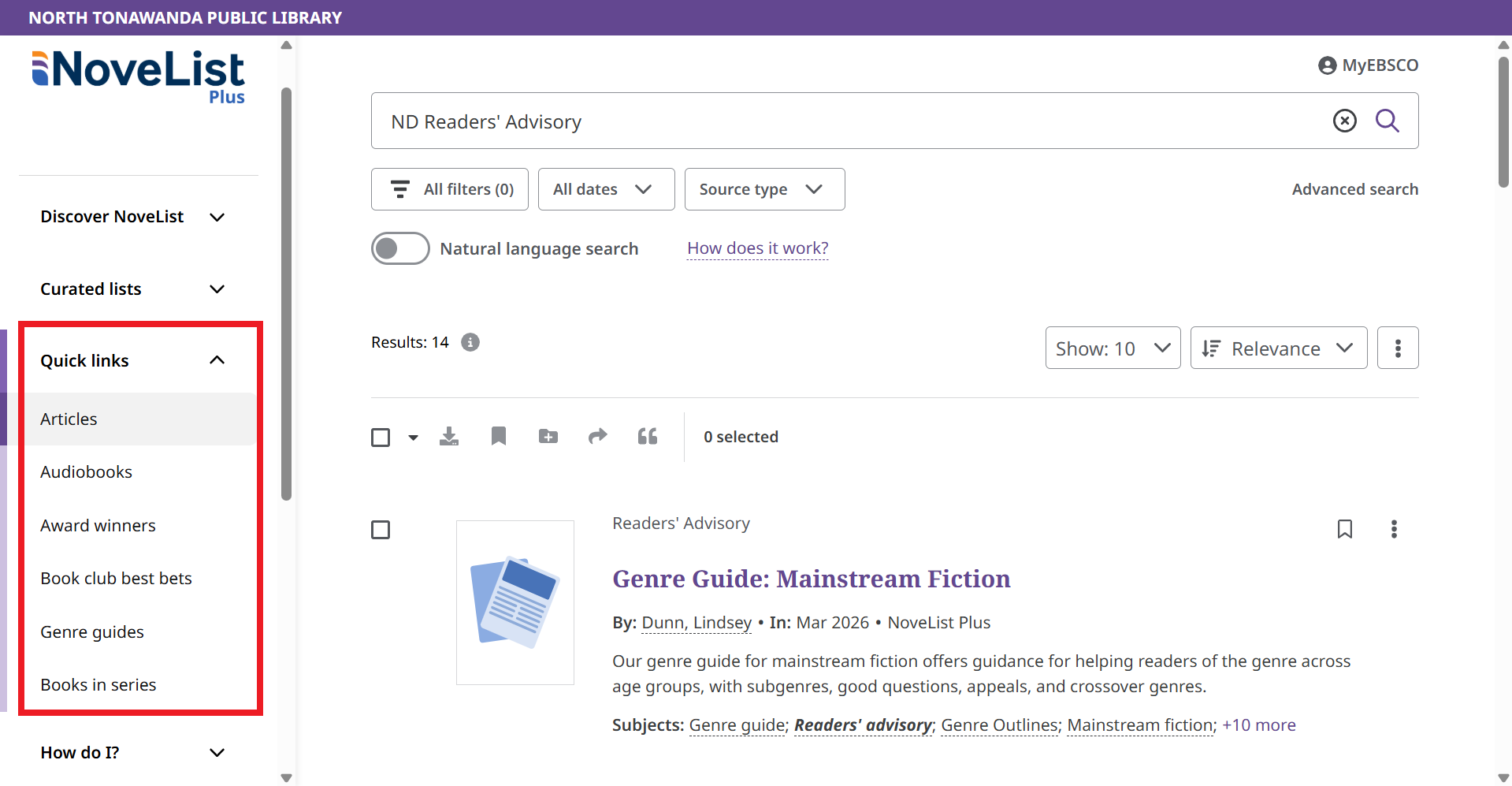
“Quick links” has numerous pages that don’t fit within the previous categories.
“Articles” takes you to all the readers’ advisory that NoveList has. This includes “genre guides”, which are listed separately and will be explained below.
“Audiobooks”, like it says, displays a list of all audiobooks listed on NoveList. Be aware this will be a very large number of items!
“Award winners” contains lists of award winning books. Each list is for a single award.
“Book club best bets” is a list of books recommended to use for book clubs.
“Genre guides” has a list of guides made to explain what readers can expect from a genre. Each guide focuses on one genre. It begins with a description of the genre and common traits of the stories within the genre along with the most common themes. It also describes what readers generally like about that genre. It lists some of the most popular books or series as well as authors. Additionally, it has a list of books and series that established the genre. It suggests some newer authors to keep an eye on. It even has tips to help fans of the genre (for librarians or other professionals buying and recommending books).
“Books in series” lists every book on NoveList that’s part of a series. This gives you a list of hundreds of thousands of books so you probably won’t be using the.
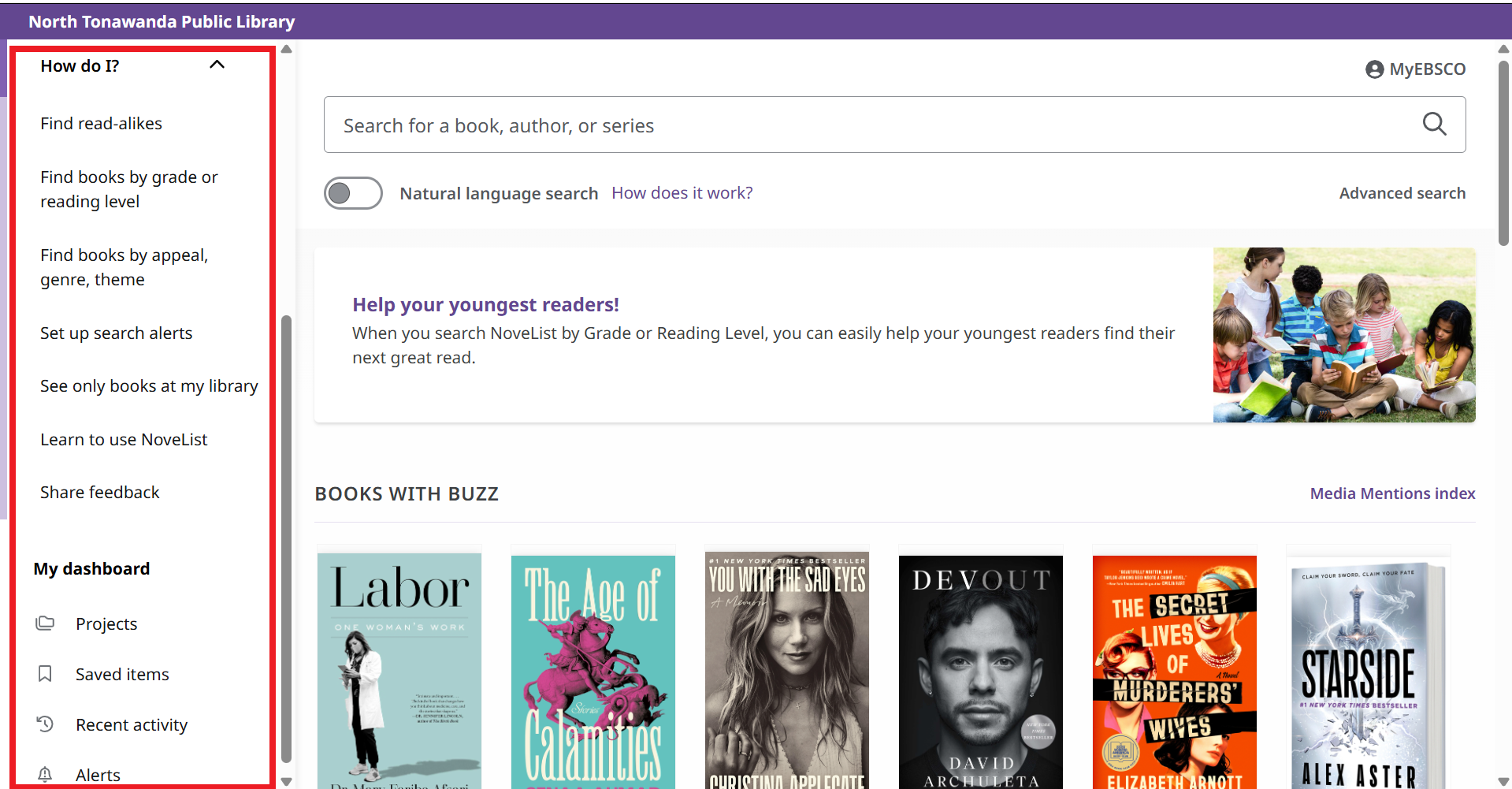
The bulk of the remaining options are mostly self explanatory. The “How do I?” options take you to help pages, so if you get stuck with anything not covered in this tutorial, I recommend checking out those links. If you still are stuck, feel free to ask one of the librarians at our library.
“My dashboard” is focused on what you’ve done on NoveList. “Projects” is a feature used by MyEBSCO accounts holders. MyEBSCO is not needed for anything covered in this tutorial. “Saved items” shows you a list of all the items you’ve saved. To save items, when you’re viewing an item in a list or search results page, look on the top right for a little bookmark image – it’s the same shape as the symbol next to “Saved items” in the image above. That’ll save it to your list. “Recent activity” allows you to see your recent search history and viewed items. “Alerts” is also a feature used by MyEBSCO account holders, so don’t worry about that. Finally, the last few items are exactly as they say: “New search” lets you search the database, “Help” takes you to the help page, and “EBSCO products” takes you to other EBSCO products (which aren’t relevant to most readers).
This was a lot of information but that’s just because NoveList has so much content and features! We only lightly brushed over the site navigation but you should now have everything you need to search NoveList for books and lists for your next literary obsessions!